 ScaFix
Guide · 2 of 24
How to read the 3D model and use the seven views
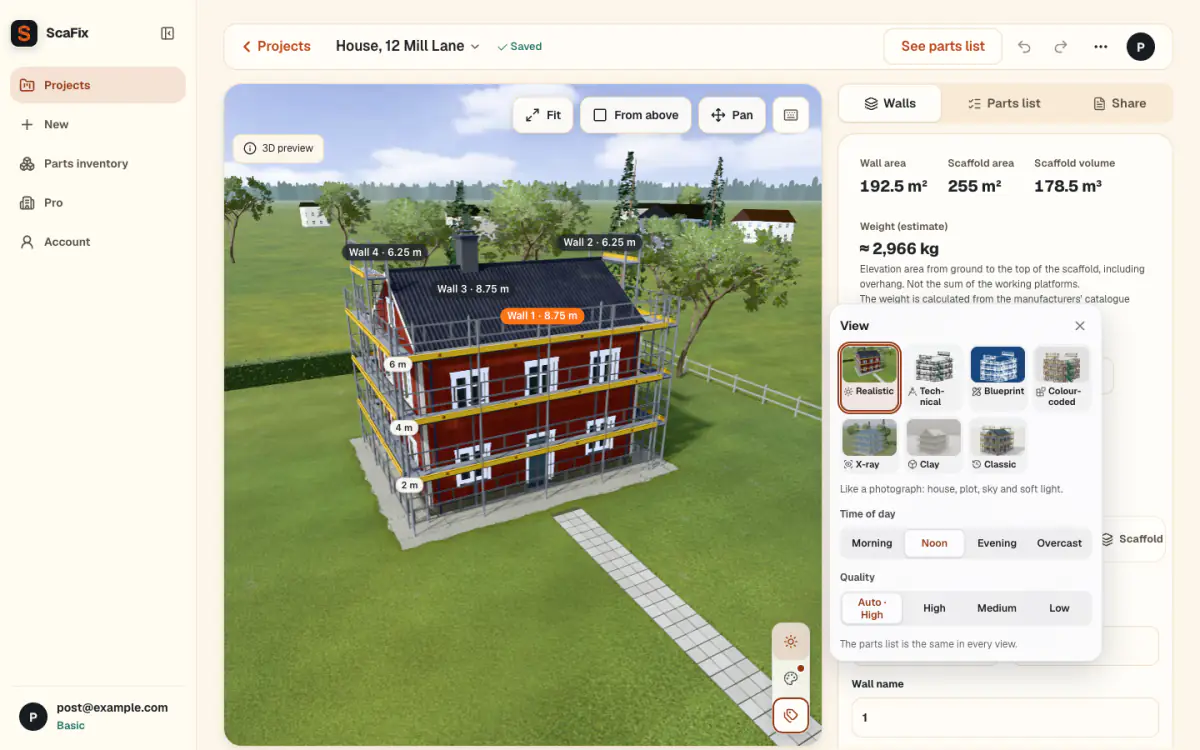
Drag to rotate and scroll or pinch to zoom. Tap a wall to focus on it. Under View you choose from seven views: Realistic for the whole picture, Technical for dimensions, Blueprint for print, Colour-coded for part types, X-ray for the ties, Clay for the form and Classic. The parts list is the same in all of them.
ScaFix Basic or Pro See the plans and what they cost
What you need
- ScaFix Basic or Pro
- A project with at least one wall.
Step by step
Step 1 Rotate, zoom and pan
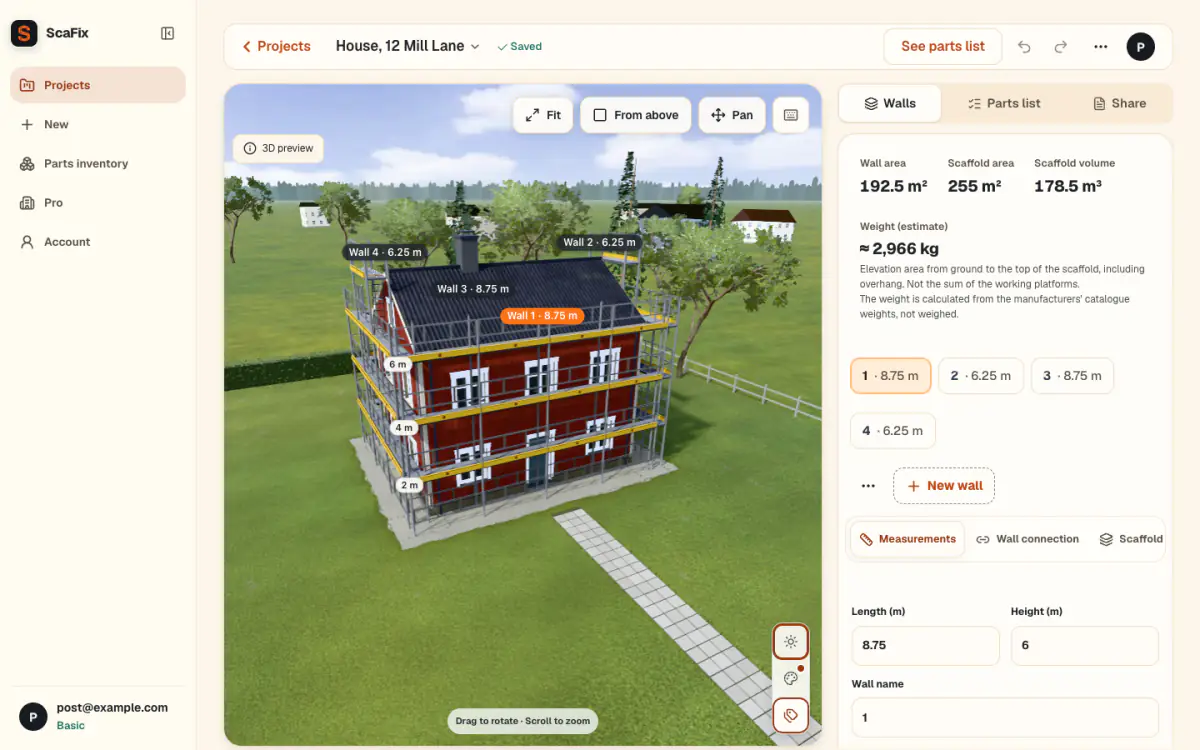
Drag the 3D picture to rotate and scroll with the mouse wheel (or pinch with two fingers) to zoom. Fit shows the whole scaffold again, From above shows it straight from above, and Pan lets you move the picture instead of rotating it. The labels show the wall number, its length and the level heights.
Step 2 Focus on one wall
Tap a wall in the 3D picture or its button in the panel (for example 1 · 8.75 m). The wall is marked in orange and the camera turns around it, so you can easily zoom in on the top or the bottom of the scaffold.
Step 3 Open View
Press the view button at the bottom right of the 3D picture. The View menu shows the seven views as small pictures, and under them Time of day and Quality. At the bottom it says: «The parts list is the same in every view.»
Step 4 Choose the view that suits the task
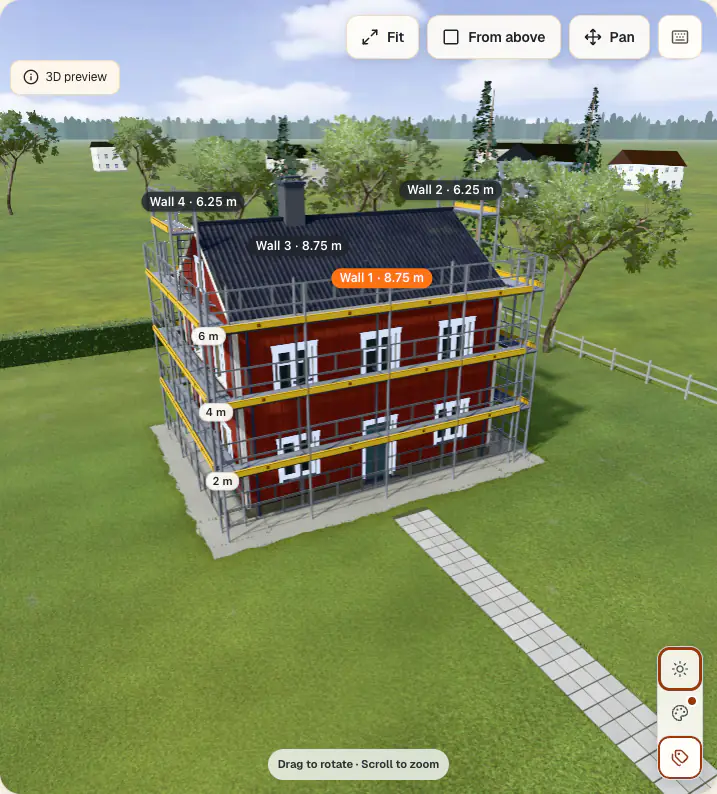
Realistic shows the house, plot and light like a photograph – good for showing a customer. Technical is a CAD view with edges, dimensions and standard angles. Blueprint gives clean lines for print. Colour-coded colours the parts by type, with a legend. X-ray lets you see through the house to the ties. Clay shows the form in one matt colour. Classic is the view as it was before the new views.
Realistic 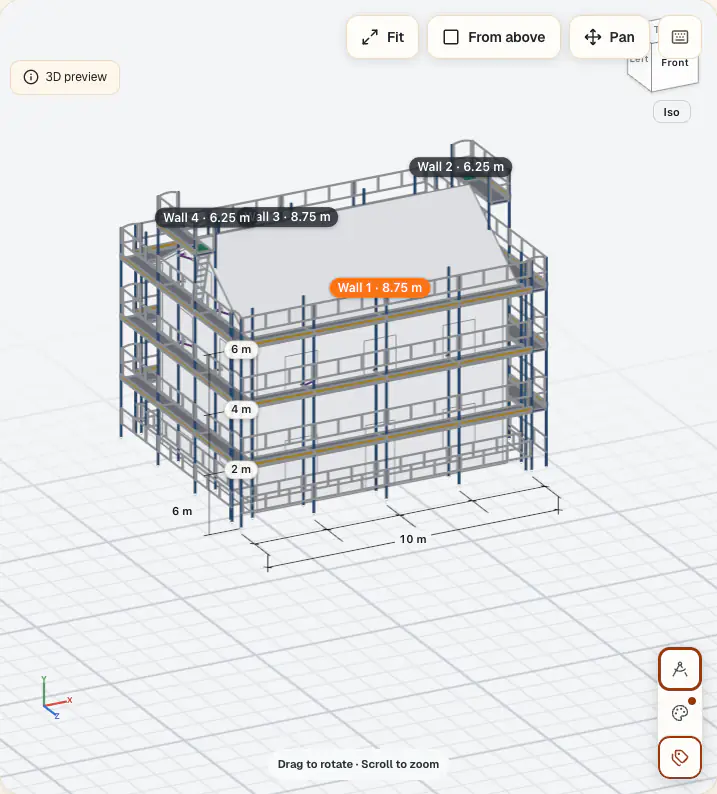
Technical 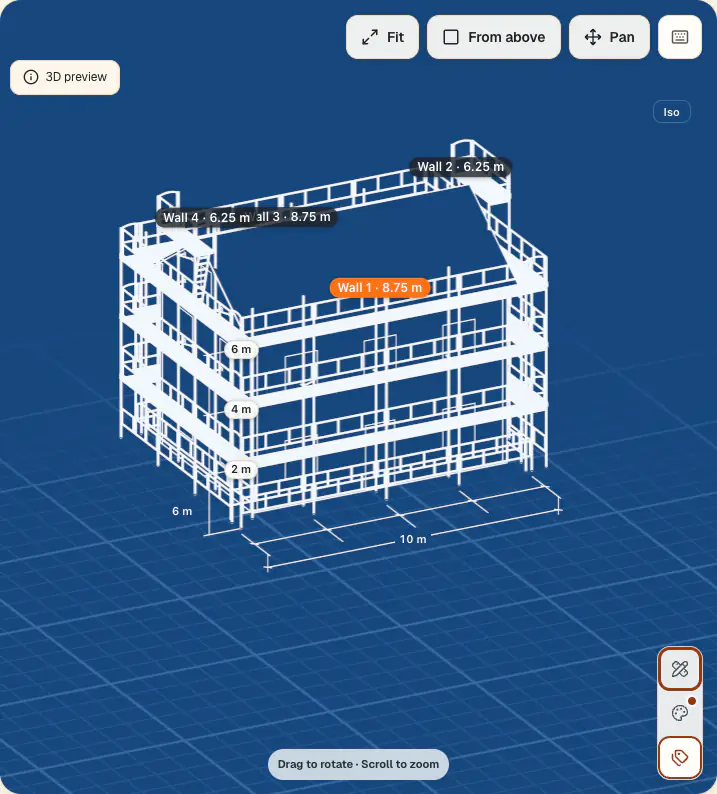
Blueprint 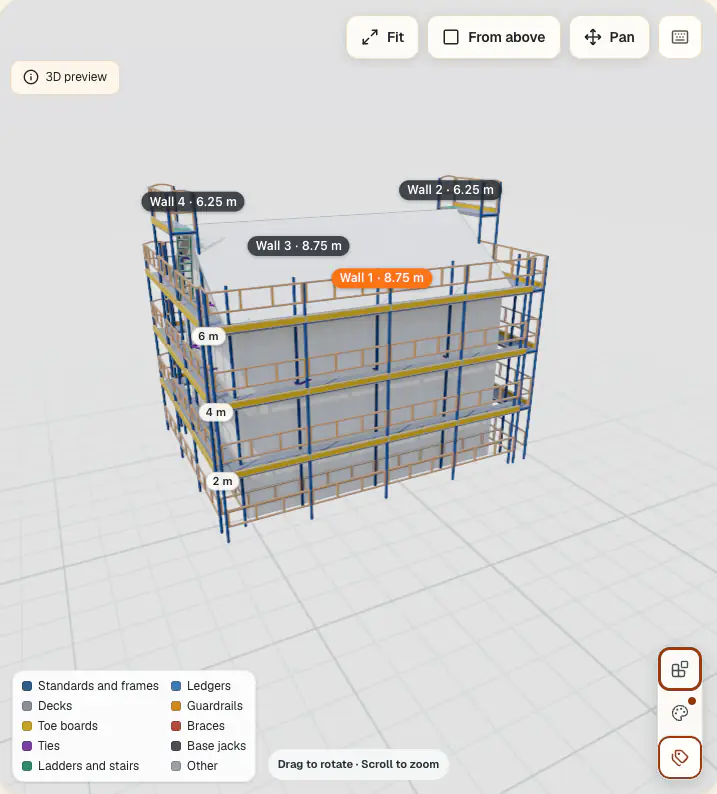
Colour-coded 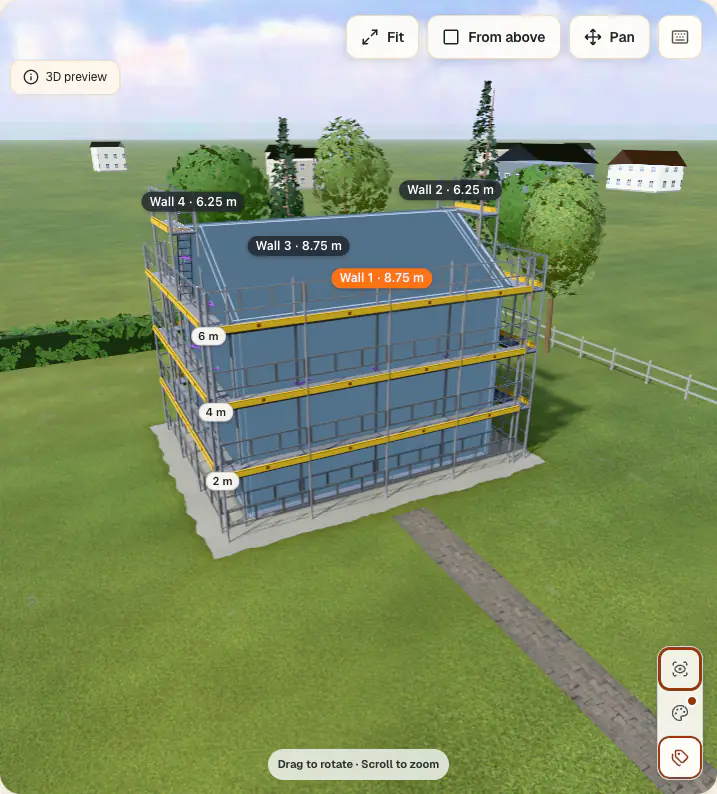
X-ray 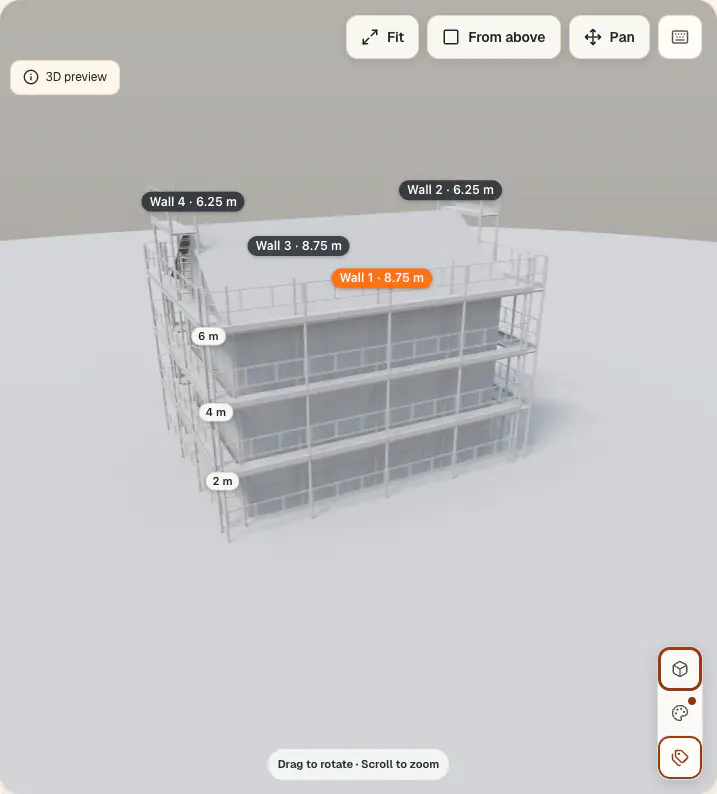
Clay 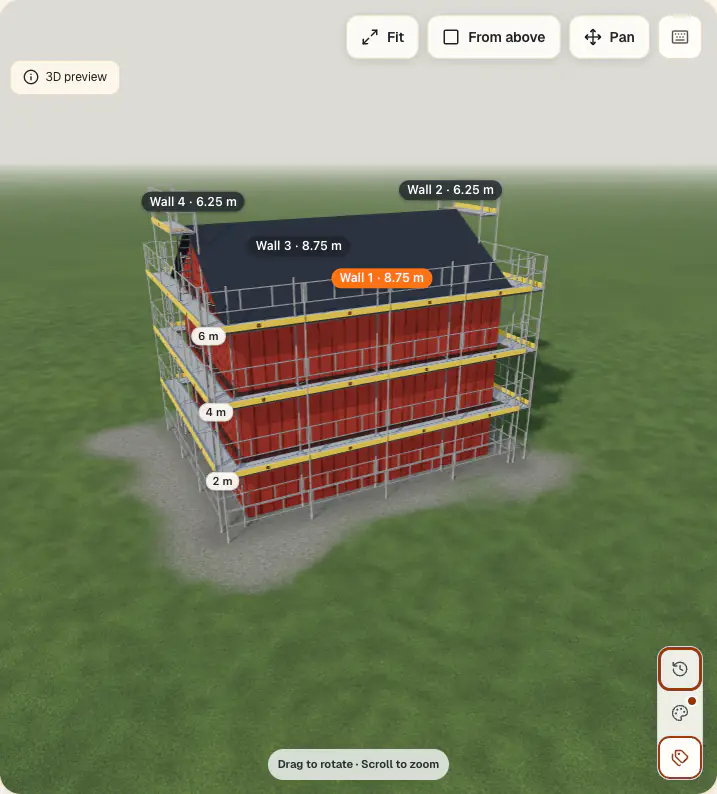
Classic Step 5 Switch back whenever you like
Your choice is remembered on this device for your account. If you choose Classic, you can go back to the new views from the same menu.
Common mistakes
- The 3D picture is slow. Set Quality to Medium or Low in the View menu. Auto chooses for the device.
- A tree hides the wall. Rotate a little, or switch to Technical or Clay, which show the scaffold without plot and trees.
- «The parts list changed when I switched view.» It does not: the views change only the picture, never the parts or the count.