 ScaFix
Guide · 12 of 24
How to read the access: ladders, decks with ladder and hatches
ScaFix plans ladder access automatically: decks with a hatch and ladder. In the parts list they are listed as Decks with ladder next to Decks without ladder. In the Colour-coded view, ladders and stairs have their own colour. A stair tower beside the scaffold is added in Pro Studio.
ScaFix Basic or Pro See the plans and what they cost
What you need
- ScaFix Basic or Pro
- A project with walls and a chosen system.
Step by step
Step 1 Find the ladder decks in the parts list
Open Parts list. Under Decks you find Decks with ladder (decks with hatch and ladder) and Decks without ladder, with length and count.
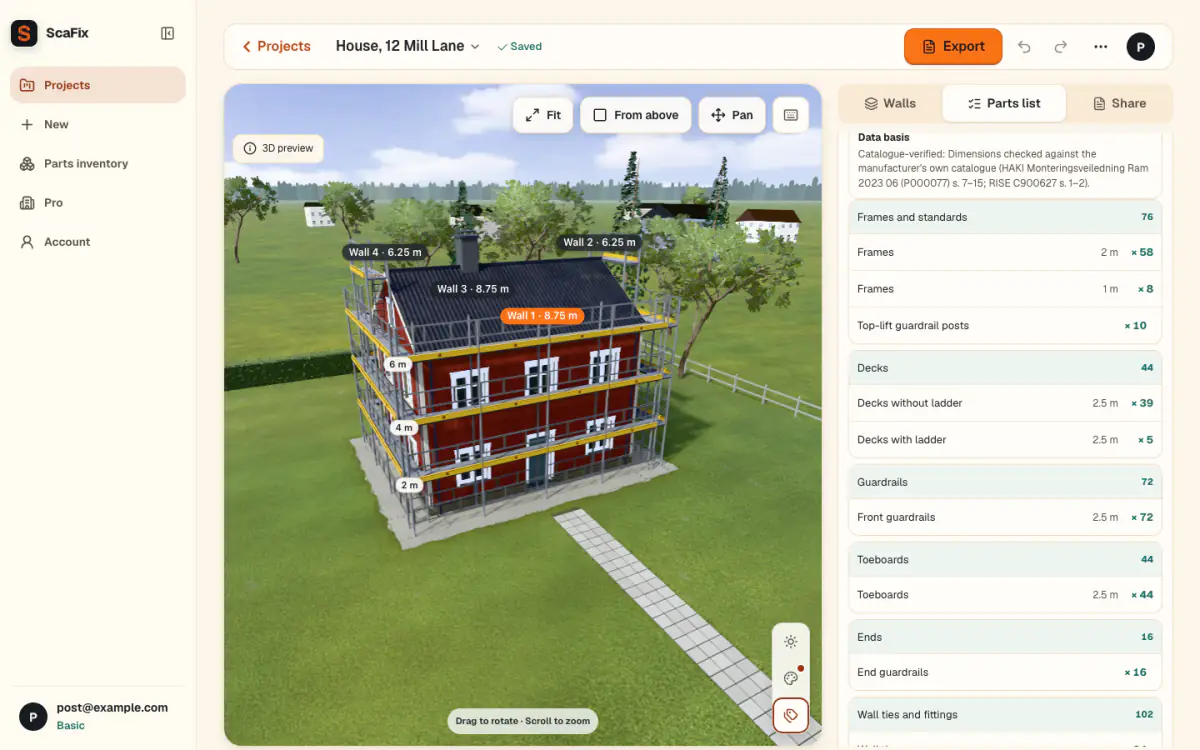
Step 2 See the ladders in 3D
Choose Colour-coded under View. Ladders and stairs have their own colour in the legend, so you see which bay the access is in.
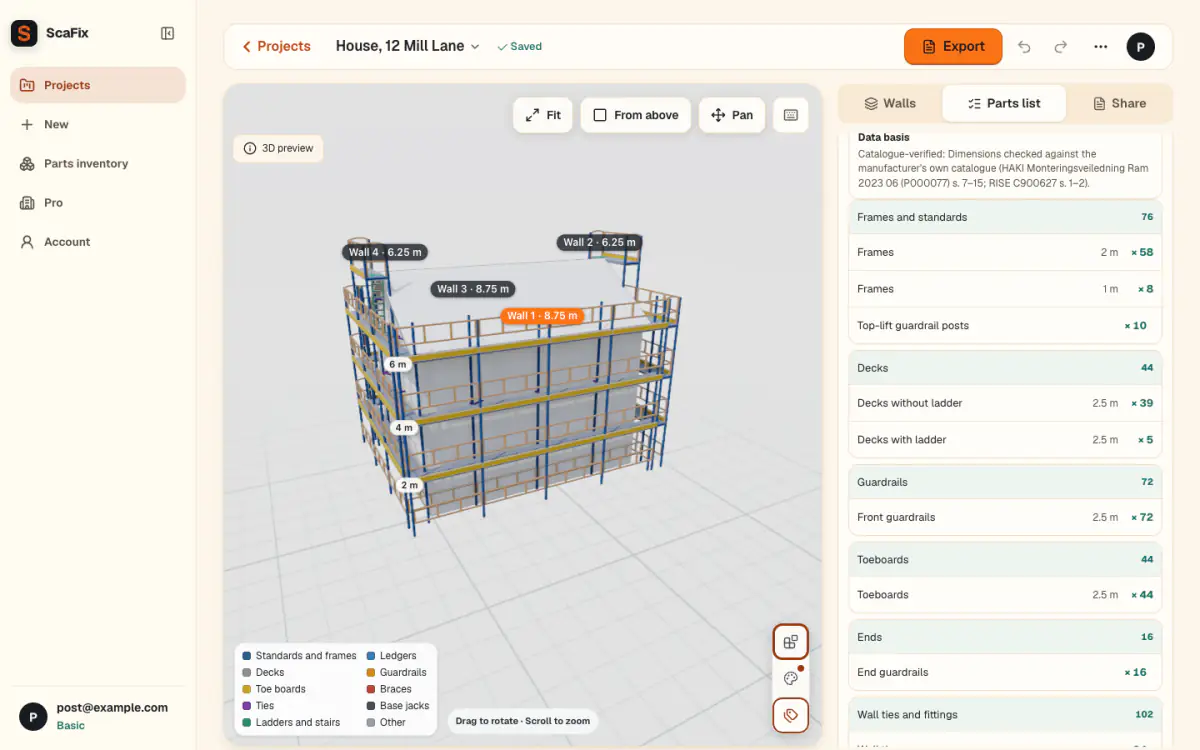
Step 3 Stair towers in Pro
A stair tower beside the scaffold is added in Pro Studio under Add → Stair tower (permanent access from the ground to the top deck). Stand-alone stair towers and mobile towers are planned with the tower planner (see Mobile towers and stair towers).
Common mistakes
- Access placed where it cannot be used. See in 3D which bay the ladder is in, and move the scaffold with Shift scaffold if needed.
- Ladder decks counted as ordinary decks. Order them as their own row – they have a hatch and a ladder.
- The plan read as approved access. The access must be assessed for the job and the site under the rules that apply.