 ScaFix
Guide · 22 of 24
How to plan mobile towers and stair towers
Under Projects press Mobile tower or stair tower. Choose Mobile tower or Stair tower, the system, Single width or Double width, Outdoors or Indoors and the platform height. ScaFix shows the tower in 3D with the full parts list from the manufacturer's table, and warns when the table does not cover your choice.
ScaFix Pro See the plans and what they cost
What you need
- ScaFix Pro
- The working height you need.
- Whether the tower stands outdoors or indoors.
Step by step
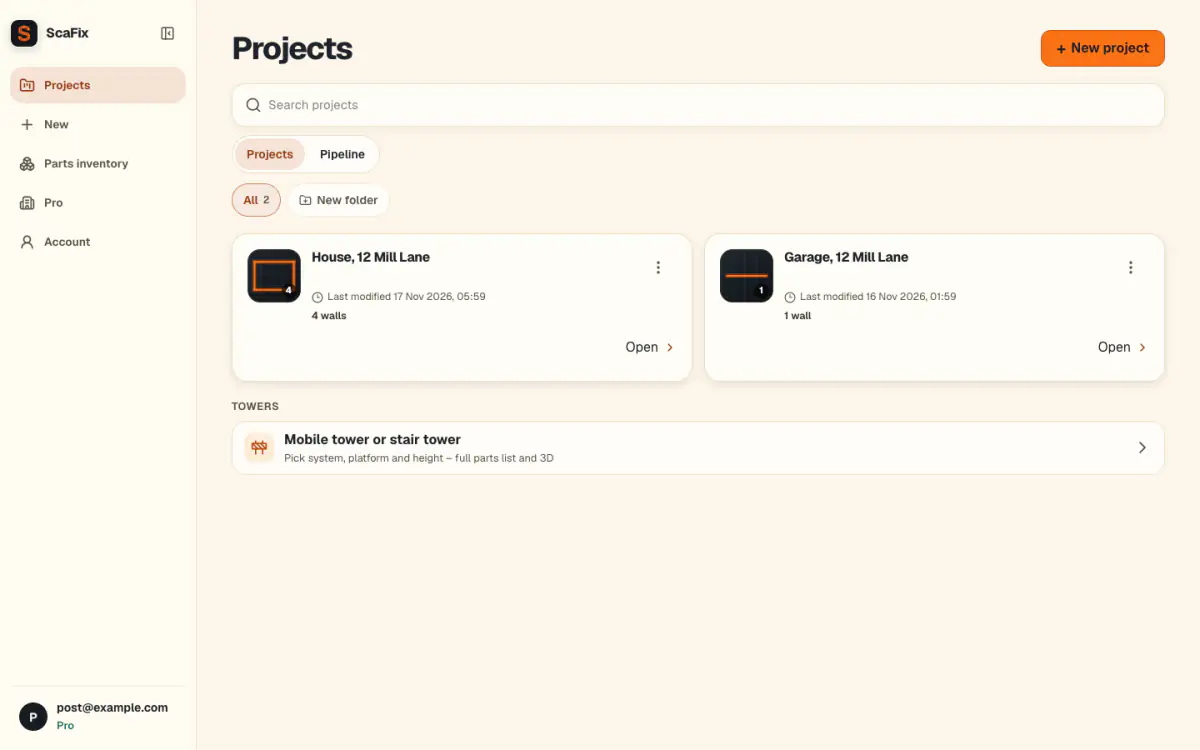
Step 1 Open the tower planner
Under Projects you find Mobile tower or stair tower (pick system, platform and height – full parts list and 3D).
Step 2 Choose type, system and height
Choose Mobile tower or Stair tower, the system, Single width or Double width, Outdoors or Indoors, and the platform height. Each height shows its working height.
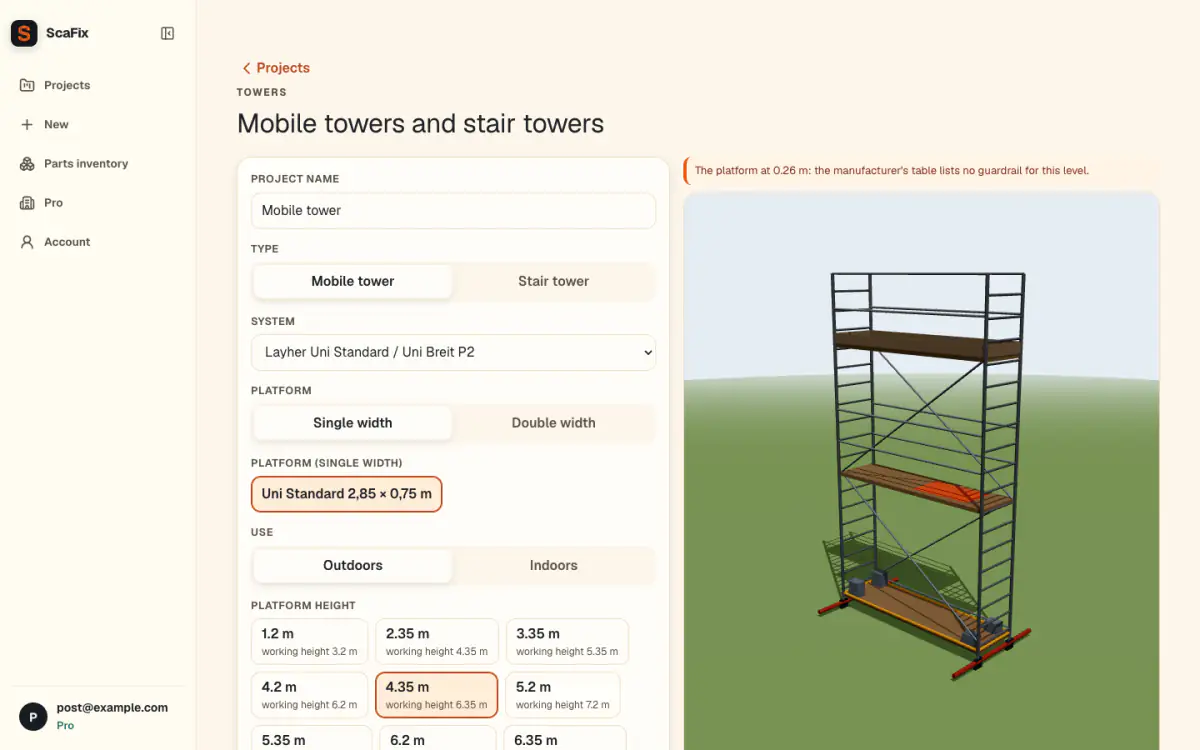
Step 3 Read the warning
Above the 3D picture are warnings from the manufacturer's table, for example when the table has no guardrail for a level. Read them before you use the parts list. Also read the Safety and stability card under the parts list. ScaFix reproduces the manufacturer's table; the tower must be erected and inspected by a competent person under the manufacturer's assembly and use manual.


Common mistakes
- Platform height mixed up with working height. The working height is shown under each platform height.
- An indoor tower used outdoors. Choose Outdoors when the tower stands outside; the table is different.
- The warning ignored. The warnings say what the manufacturer's table does not cover.