 ScaFix
Guide · 6 of 24
How to plan a whole house with several walls and corners
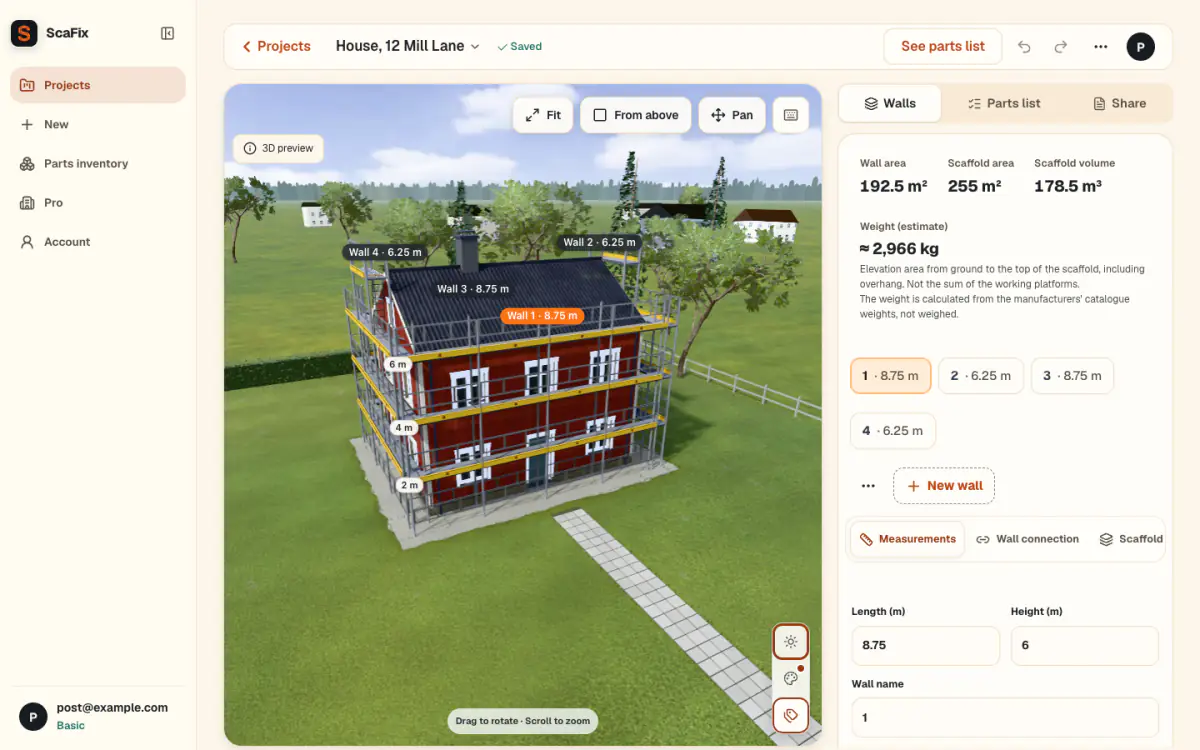
Each facade is a wall in the project. Press New wall to add the next facade, and choose under Wall connection which wall it connects to and at which end. ScaFix sets the corner, adds the corner bays and counts the parts for the whole house. The wall buttons show the number and length of each wall.
ScaFix Basic or Pro See the plans and what they cost
What you need
- ScaFix Basic or Pro
- The length and height of each facade.
- The order around the house (for example clockwise from the entrance).
Step by step
Step 1 See the walls in the project
Each facade has its wall button in the panel, for example 1 · 8.75 m, 2 · 6.25 m. In the 3D picture each wall carries the same number. Here House, 12 Mill Lane has four walls connected into a house.
Step 2 See how a wall is connected
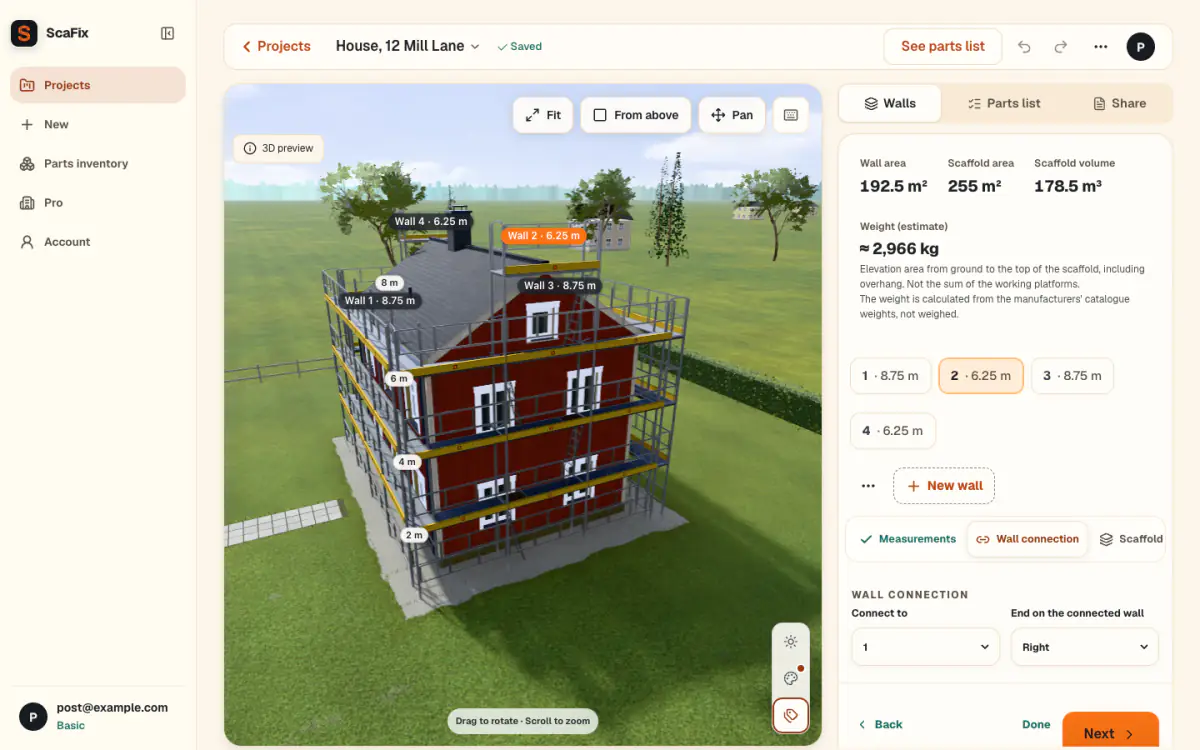
Select a wall and open Wall connection. Connect to shows which wall it joins, and End on the connected wall shows at which end the corner is. Wall 2 is connected to the right end of wall 1.
Step 3 Add a wall
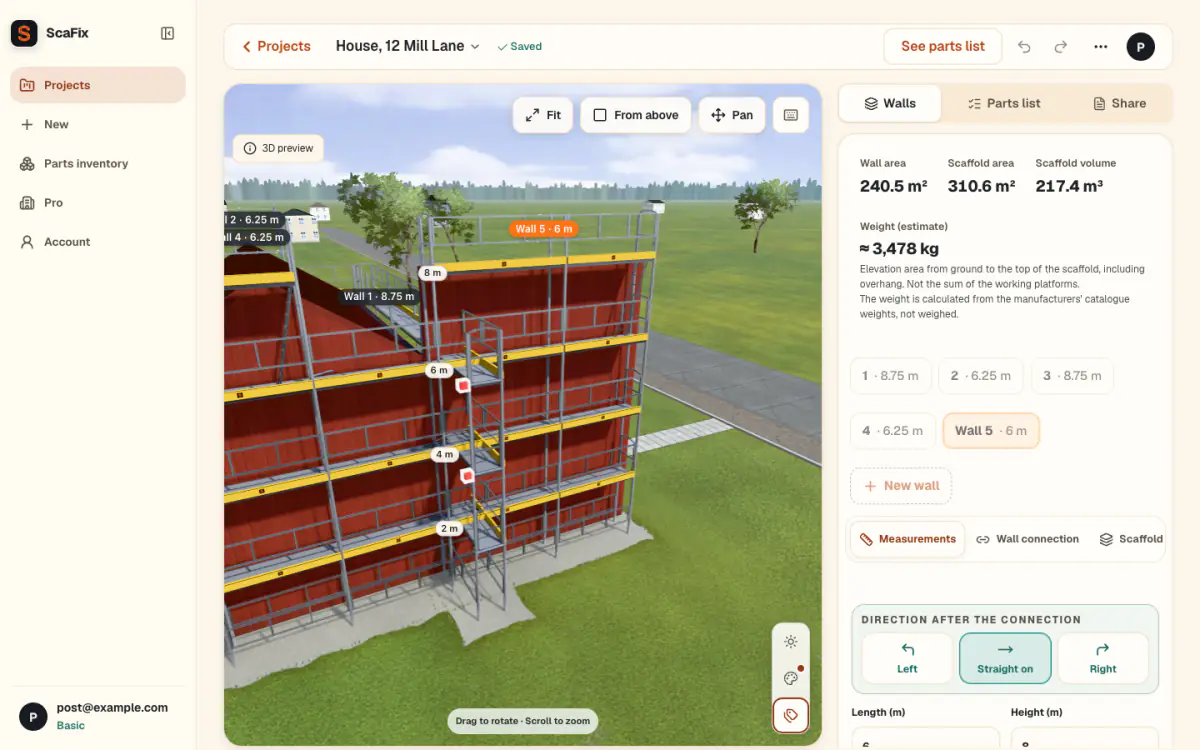
Press New wall. The new wall is connected to the end of the last wall and gets a length you can change under Measurements. Under Direction after the connection you choose Left, Straight on or Right.
Step 4 Choose the corner
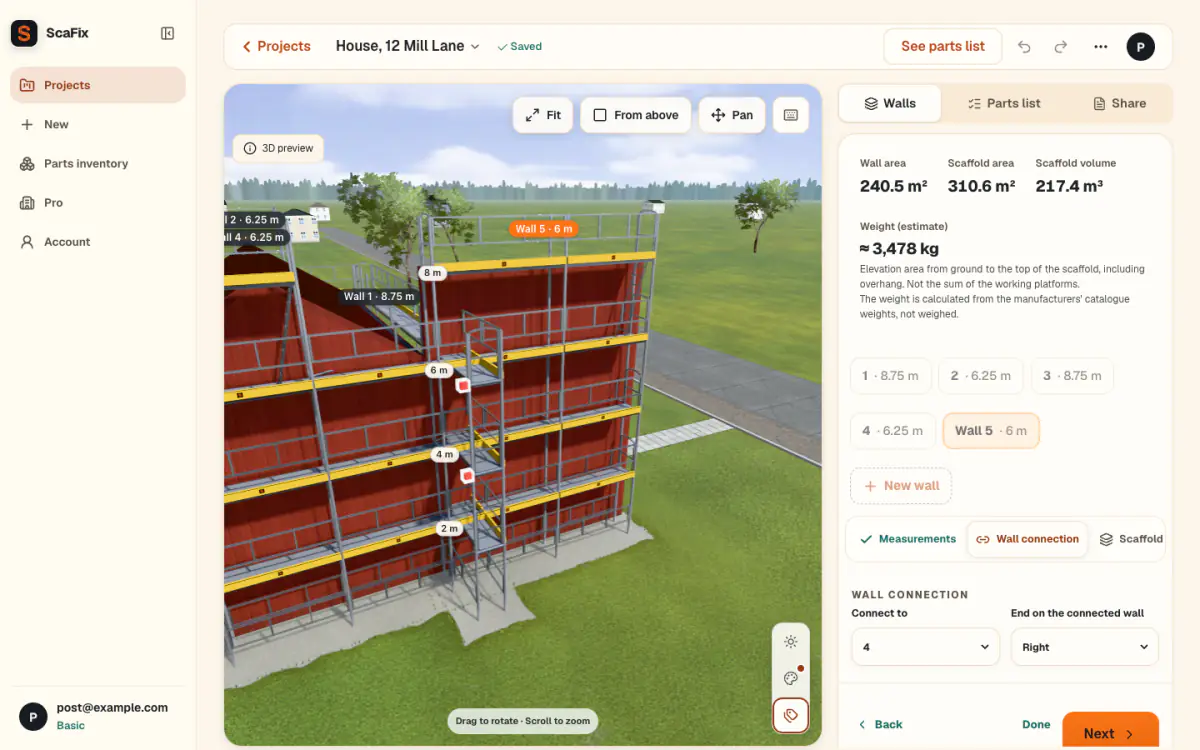
Under Wall connection of the new wall you choose the wall and the end. If it should not connect, choose no connection – the wall then stands on its own. Press Next to go on to Scaffold, or Done.
Connect the walls
Under More (three dots) → the project settings you find Connect the walls. When it is on, ScaFix keeps the project's walls in one connected chain, so the corners follow when you change a length.
Common mistakes
- The corner turns the wrong way. Choose the other direction under Direction after the connection, or the other end under End on the connected wall.
- A stand-alone wall counts as a corner. Choose no connection for walls that do not join the house.
- The length measured round the outside of the corner. Use the wall's own measurement; ScaFix adds the corner bays itself.