 ScaFix
Guide · 14 of 24
How to use the parts inventory
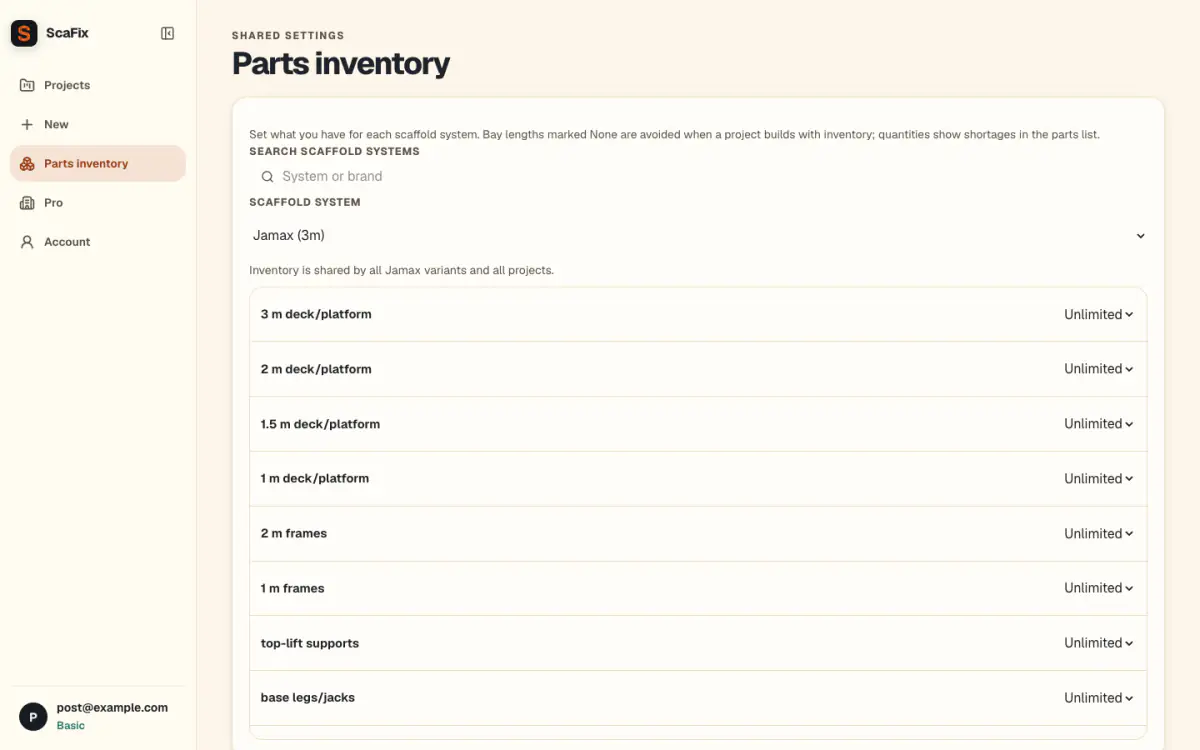
Open Parts inventory, choose the scaffold system and set the availability of each part: Unlimited, None or a quantity. The inventory is shared by all your projects and every variant of the system. In the project, switch on Build with parts inventory under Scaffold; lengths set to None are then avoided, and the parts list shows what is missing.
ScaFix Basic or Pro See the plans and what they cost
What you need
- ScaFix Basic or Pro
- An overview of the parts you have (quantity per part and length).
Step by step
Step 1 Open Parts inventory
Press Parts inventory in the menu. Search for or choose the system under Scaffold system. Each part has its availability on the right: Unlimited, None or a quantity. The inventory is shared by every variant of the system and by all projects.
Step 2 Set a quantity or None
Choose the quantity you have of each part. Set None for lengths you do not have; they are avoided when a project builds with the inventory.
Step 3 Build the project with the inventory
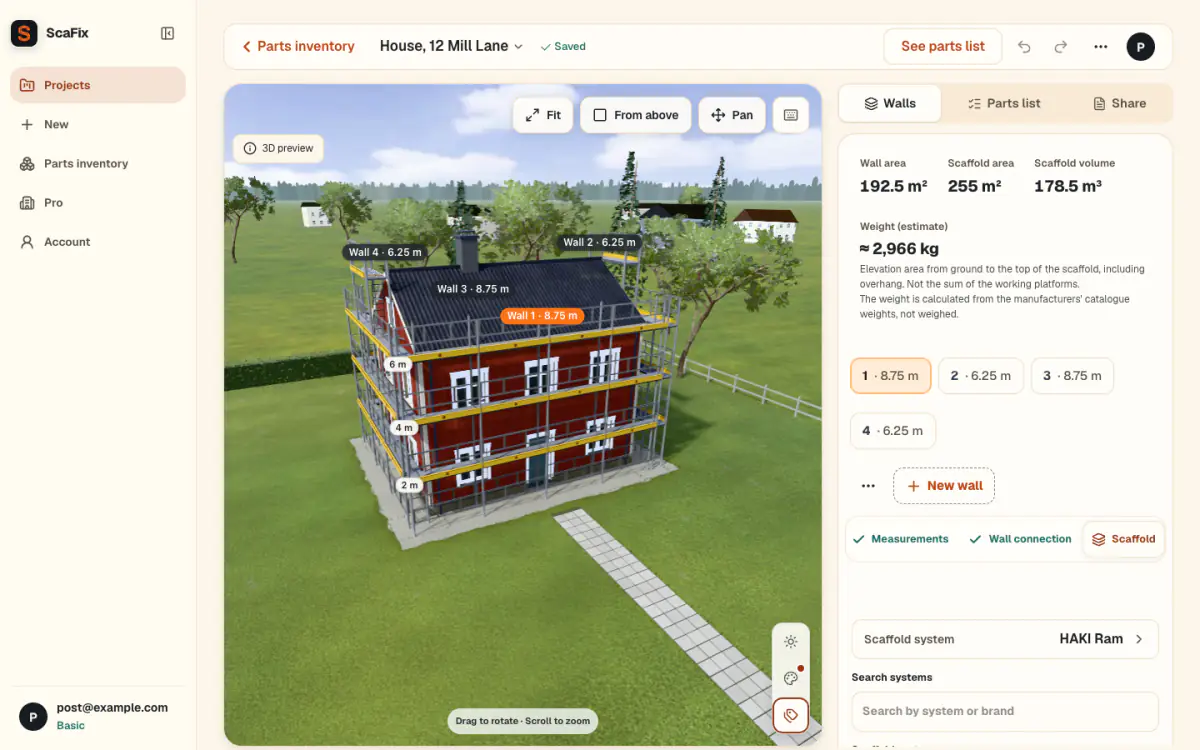
Open the project, select the wall and Scaffold, and switch on Build with parts inventory (use only the bay lengths marked as available in the inventory on your account).
Step 4 See what is missing
The parts list shows a shortage when the use exceeds the quantity in the inventory. Then you know what to hire or buy before the job.

Common mistakes
- The inventory looks empty for a system. The inventory is per system family; choose the right system at the top.
- The project uses lengths you do not have. Switch on Build with parts inventory for each wall, and set the lengths you lack to None.
- A quantity left at Unlimited. Then the list never shows a shortage for that part – enter the real quantity.