 ScaFix
Guide · 20 of 24
How to plan scaffolding around silos and round buildings
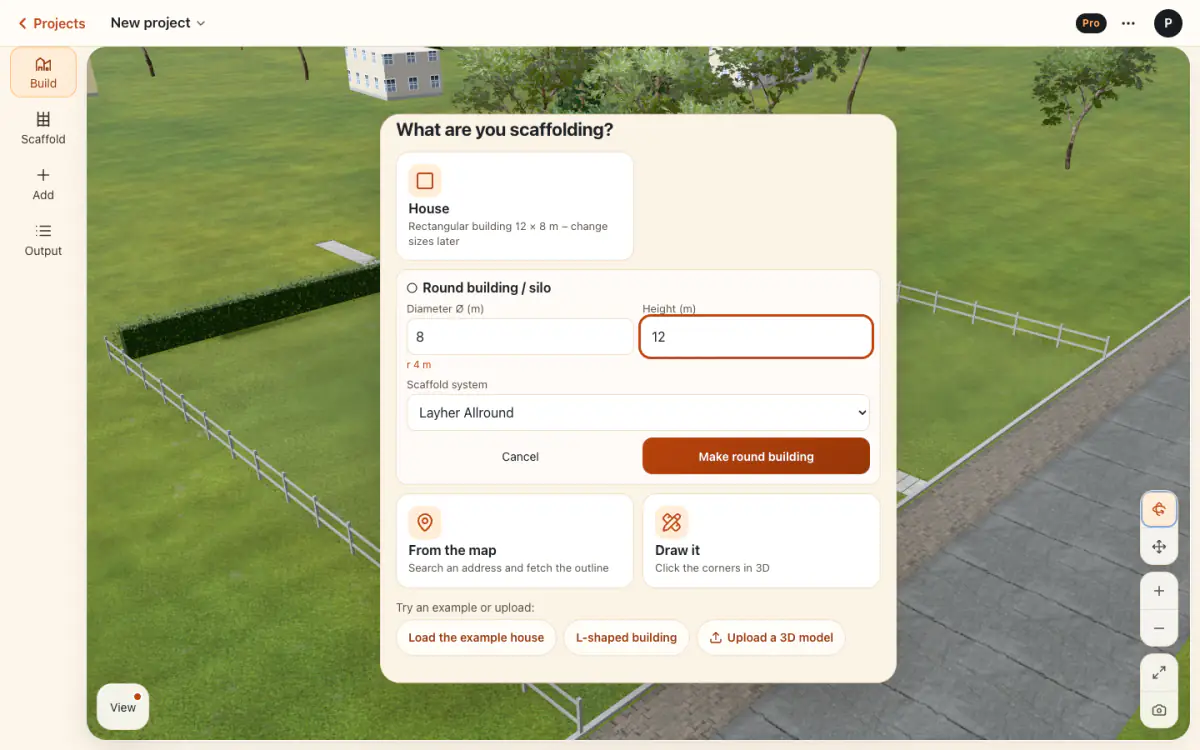
In a new Pro project choose Round building / silo. Type the diameter Ø and the height, choose the scaffold system and create the round building. ScaFix places the scaffold around it in bays, shows it in 3D and counts the parts. Under Scaffold you see the system, bays and lifts.
ScaFix Pro See the plans and what they cost
What you need
- ScaFix Pro
- The diameter and height of the building.
Step by step
Step 1 Choose Round building / silo
Press Round building / silo (type Ø and height). Type the diameter and the height in metres, and choose the scaffold system.
Step 2 Create the round building
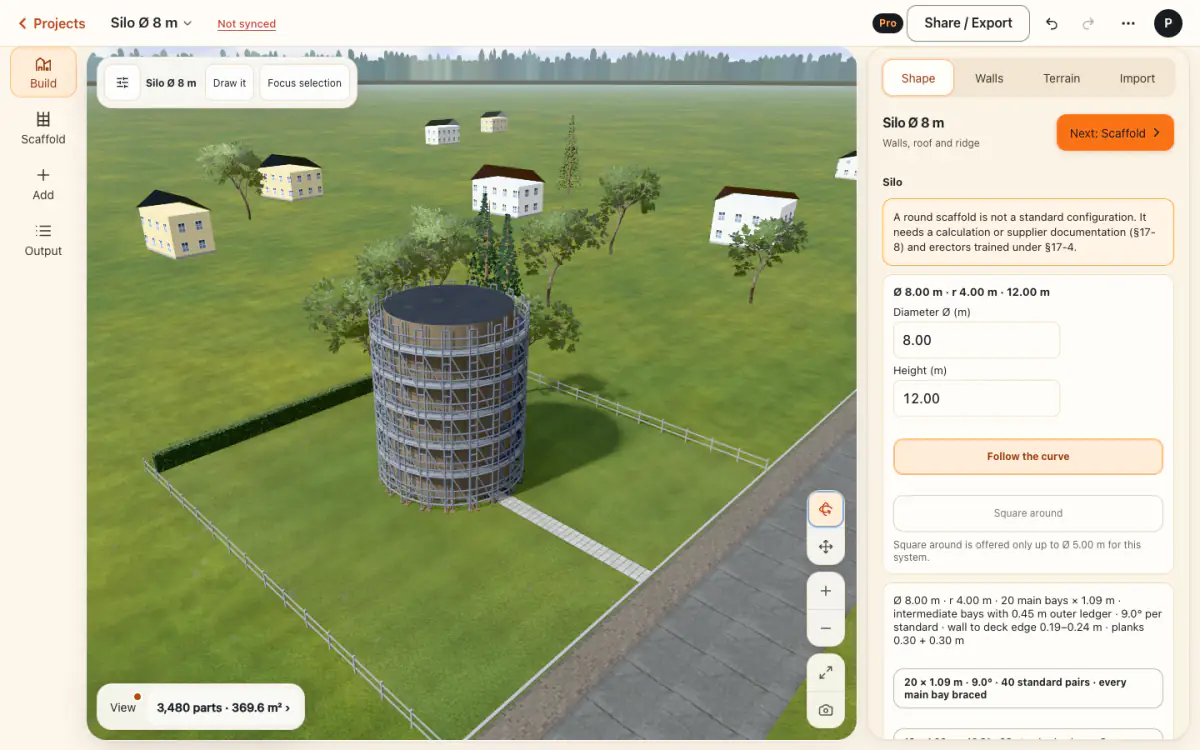
Press the create button. The silo appears in 3D with its name and size, for example «Silo Ø 8 m».
Step 3 See the scaffold
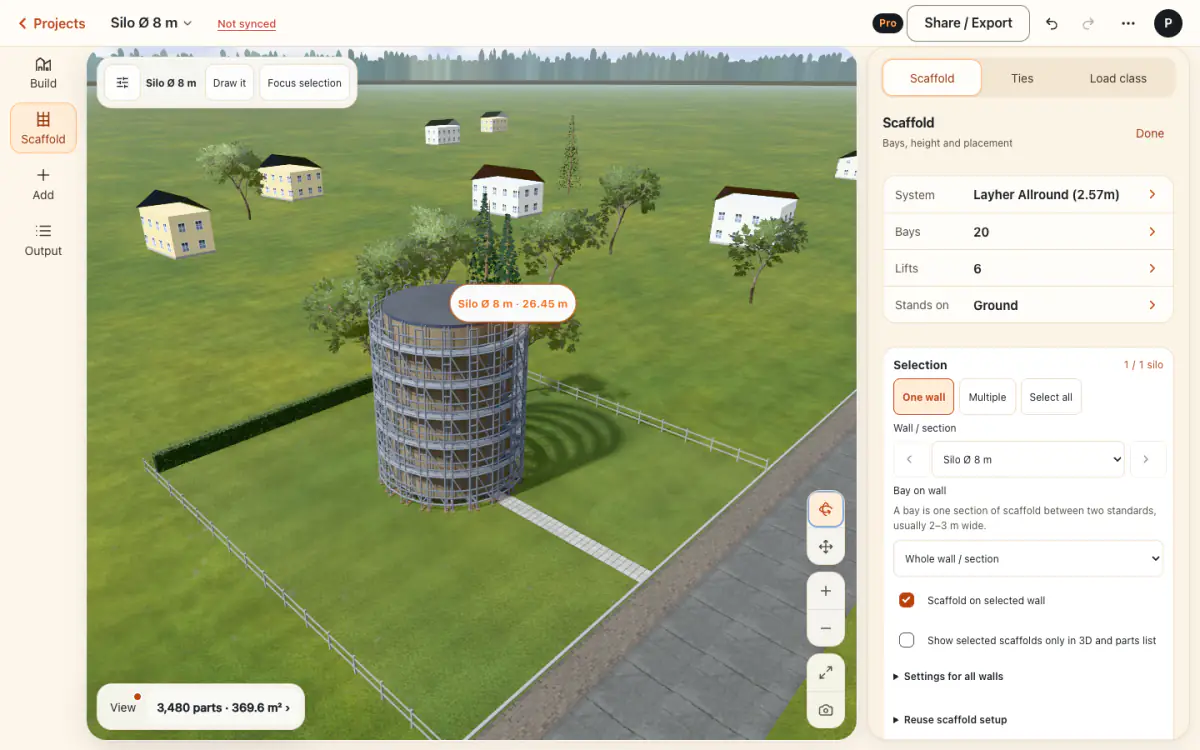
Under Scaffold you see the system, the number of bays, the lifts and what the scaffold stands on. At the bottom are the number of parts and the area.
Common mistakes
- The radius typed instead of the diameter. The field is Ø – the whole diameter.
- The wrong system. Change it under Scaffold → System; the parts list is recalculated.
- Access forgotten. A stair tower cannot be placed on a building with only round bays yet; ScaFix says so when you try. Plan the access to the silo separately.